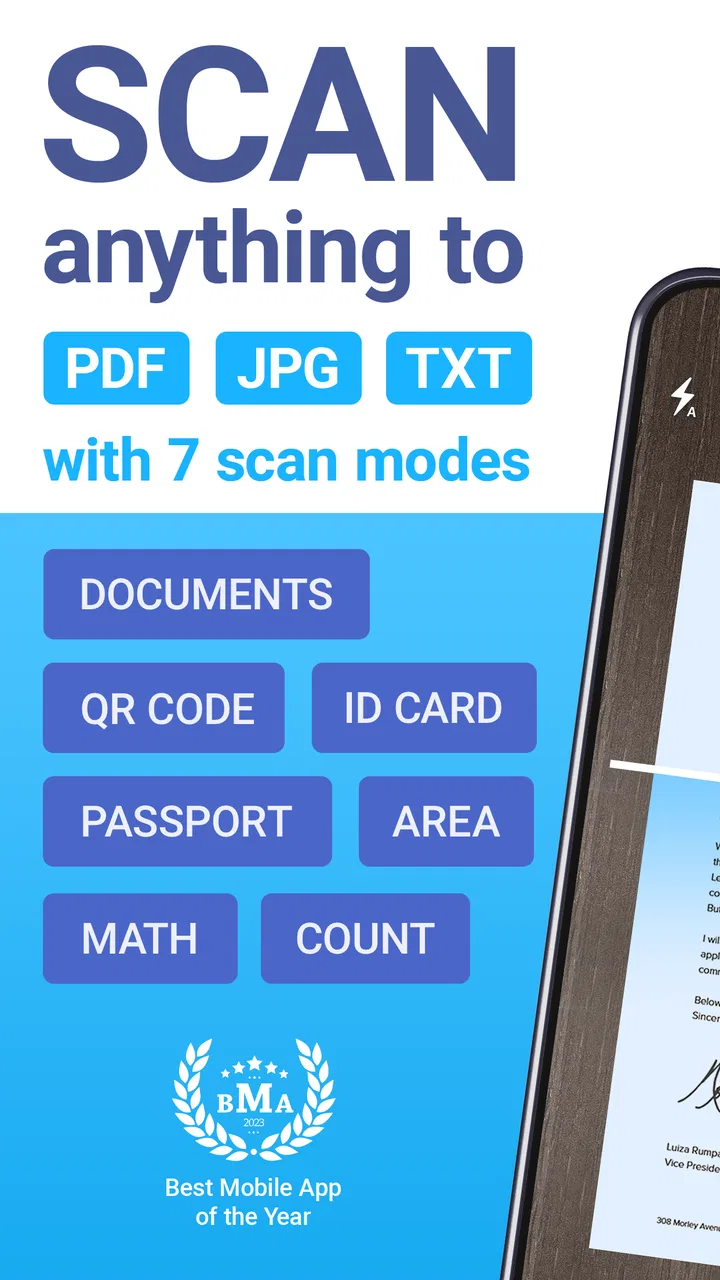
iScanner - PDF Scanner App
- 4.7
- Rating
- 10.00M
- Installs
- Free
- Price

 Analysis by App-foxy
Paperwork has a habit of appearing at the worst possible moment: a form needs sending before a meeting, a receipt has to be kept, or a signed page is sitting on a desk while the office scanner is nowhere nearby. I have used iScanner as a way to deal with that recurring problem from my phone, and its main value is straightforward: it turns a camera into a practical document-scanning tool with OCR text recognition. The useful question is not whether it can take a picture of a page, but whether it can save me enough time to make that picture usable.
In my experience, this is a productivity app rather than a replacement for every dedicated scanner. It is aimed at quick capture, readable digital copies, and situations where I need to move a document from paper into a phone-based workflow. BP Mobile LLC develops it, and the app is free to start, with optional in-app purchases ranging from $0.99 to $39.99 per item. That makes the initial decision easy, although anyone who expects every function to remain unrestricted without payment should look carefully at the available options before building a long-term workflow around it.
How iScanner fits into real paperwork
I find mobile scanning most useful when it slots into the paperwork I already have to do, rather than becoming a separate filing project. In this section, I look at the small decisions that make a phone scan dependable—from checking a page before the original disappears to choosing what deserves careful handling. That practical routine also leads into the questions of control and trust.
You May Also Like

 Blood Strike: 2.5 Anniversary
Blood Strike’s Loadouts Turn Every Drop Into a Tactical Gamble
A close look at Blood Strike’s custom loadouts: how fast access to signature weapons reshapes its battle royale rhythm, rewards preparation, and narrows the gap between fights.

 Pandora - Music & Podcasts
Pandora’s Music Is Easy to Start, but Harder to Recover
Pandora’s strength is its low-effort path from a seed to a station. Its weak spot is how much confidence it asks you to place in connection, setup, and quiet recovery.

 8 Ball Pool
 Is Built on Rivalries, Rematches, and Routine
A close look at the rivalries, rematches, shared routines, and unanswered safety questions that turn a quick pool match into a persistent mobile community.

 Samsung Music
’s Quiet Strength Is Playing What You Already Own
Its reach comes less from spectacle than from dependable access to a personal library. That simplicity is both the app’s strongest retention engine and its ceiling.

 AccuWeather: Weather Radar
AccuWeather Review: A Quick, Clear Forecast for Everyday Decisions
For everyday plans, the best forecast is the one you can understand quickly. AccuWeather makes rain timing, radar, and local conditions easy to act on, with a few trade-offs.

 Hill Climb Racing
Why Hill Climb Racing Still Turns Crashes Into One More Run
A tiny car, a bumpy hill and one more upgrade: Hill Climb Racing keeps resurfacing because its simple chaos makes every near-miss feel personal.
More From Our News Desk



The recurring problem it solves
A normal phone camera is technically enough to photograph a document, but the result is often awkward. The page may be tilted, the edges may blend into the desk, shadows can cover a signature, and the final image is not always convenient to share. A scanner app earns its place by reducing those small annoyances between “I have a paper page” and “I have a clean digital document.”
That is where this app makes sense. I can treat a page as a document instead of a casual photograph, then use the result for storage, sending, or later reference. The distinction matters when a page has several paragraphs, boxes, or numbers that need to remain legible. A camera roll full of irregular snapshots quickly becomes difficult to search and manage; a scan-focused workflow feels more deliberate.
The OCR text-recognition function is especially useful when I do not merely want to look at a page. If I need to reuse a name, address, reference number, or paragraph, extracting text can save the repetitive task of typing it manually. I would still proofread anything important, particularly figures and unusual names, but the feature changes the app from a simple image collector into a more useful bridge between paper and editable information.
It is also a good fit for people who do not scan documents often enough to justify dedicated hardware. Students, renters, freelancers, travelers, and small teams can all run into occasional paperwork without having a scanner permanently available. For those moments, carrying a phone is much more realistic than finding office equipment.
A first setup that avoids later mess
The first useful setup is less about changing complicated preferences and more about deciding how I want to organize the results. Before scanning a stack, I make sure the pages are flat, the lighting is even, and the background contrasts with the paper. Those simple choices help the camera distinguish the document edges and reduce the need to correct every page afterward.
I also recommend testing one unimportant page before capturing something that cannot be replaced. This gives me a chance to check whether the text is readable, whether the full page fits inside the frame, and whether the OCR result is good enough for my purpose. A quick test is much less frustrating than discovering later that a signature or small line of text was lost.
For multi-page work, I keep the pages together during the capture process and review them before sharing. The practical mistake is assuming that a scan is finished as soon as the camera accepts it. I look for cropped corners, blurred sections, and pages in the wrong order. This is particularly important with forms, where a missing final page can make the whole file useless.
My advice is to separate “archive quality” from “quick reference” quality. A receipt I only need to consult later does not deserve the same attention as a signed agreement. Treating every scan as a formal archive slows the app down in daily use, while treating important paperwork casually creates avoidable problems.
Everyday scenarios where the time saving is real
One realistic example is a rental application. I may receive a paper statement, need to send it to an agent, and have only a few minutes before moving on with the day. Instead of looking for a scanner, I can capture the page, check that the identifying details are visible, and prepare a cleaner digital copy from the phone. The benefit is not dramatic technology; it is removing a trip to another device.
Another scenario is a student photographing lecture handouts or reading material. OCR can help when I want to search a phrase or move a short passage into notes, but I would not assume that every page will convert perfectly. Complex layouts, columns, handwriting, tables, and low contrast can require manual correction. For ordinary printed text, it is a useful starting point; for specialized formatting, I treat recognition as assistance rather than a finished transcription.
Receipts are another practical use. I can capture them soon after shopping instead of allowing them to fade, crumple, or disappear into a wallet. The app is most helpful when I adopt a naming and filing habit immediately. A scan with an unhelpful filename is still hard to find later, so the real workflow is capture, inspect, label, and then share or store it.
For remote work, the app can help when a colleague needs a signed page quickly. I can scan the completed sheet without waiting for access to a multifunction printer. That convenience has a limit: if the recipient requires a particular institutional scanning standard, a high-resolution office scanner may still be the safer choice. I use the phone solution when speed and availability matter more than specialized hardware.
Travel creates a different use case. Copies of identification-related paperwork, reservations, or insurance documents can be kept in a more readable form than casual camera images. I would be careful with sensitive material, however. A document scanner does not remove the responsibility to protect personal information, and I avoid sharing scans through channels I do not trust.
Where it removes friction better than ordinary alternatives
The most obvious alternative is the default camera app. That option is fine for a single page that I only need to view, and it avoids learning another interface. The problem appears when I need consistent framing, a document-oriented result, or text recognition. A camera photo often leaves me doing the cleanup manually, while iScanner is built around the next step after taking the picture.
A physical scanner remains better for large batches, repeated office work, and situations where uniform output matters. It is faster when already connected and ready, especially for many pages. iScanner wins when the scanner is elsewhere, unavailable, or too inconvenient to set up. I see it as a mobility advantage rather than a universal hardware replacement.
Cloud office suites may be preferable for people already working inside a particular document ecosystem. Their strength is often collaboration, shared storage, and continuity across devices. This app is more focused on the act of turning paper into a usable scan. If my priority is team editing immediately after capture, I may prefer the tools already connected to that team; if my priority is getting a clean page from a phone, iScanner is more direct.
There is also a trade-off between convenience and review time. Automatic processing can make a page look more presentable, but I never send an important document without checking it at full size. A polished-looking scan can still contain a clipped edge or unreadable number. The app reduces manual work; it does not eliminate judgment.
Three practical habits that make a difference
First, I scan in batches only when the pages belong together. Mixing receipts, forms, and notes in one session makes later organization harder. A short, clearly defined batch is easier to inspect and less likely to produce an accidentally incomplete document.
Second, I use OCR as a retrieval aid, not as unquestioned truth. When the text is ordinary and printed, recognition can save substantial typing. When the page contains decimal points, serial codes, accents, or unusual typography, I compare the extracted text with the image. This small check prevents a fast workflow from creating a quiet data-entry error.
Third, I inspect the page boundaries before putting the original paper away. This is a simple but non-obvious safeguard: once the physical document has been filed or discarded, a missed corner may be difficult to recover. A two-second visual check is often more valuable than trying to repair a bad scan later.
A fourth habit helps with sensitive paperwork: I decide where the scan is going before I capture it. If it is for immediate sending, I can focus on readability and the correct page order. If it is for personal records, I give it a meaningful label and avoid leaving a confusing pile of nearly identical files. The app makes capture easier, but organization still depends on the user.
What may slow you down
The first limitation is that phone scanning depends heavily on the physical conditions around the page. Glare, shadows, curled paper, poor lighting, and a busy background can all reduce the quality of the result. A dedicated scanner is more predictable because it controls those variables. With iScanner, better positioning and lighting are part of the process.
OCR also deserves realistic expectations. It is valuable for printed material, but recognition can struggle with handwriting, decorative fonts, dense tables, or pages photographed at an angle. I would not use the extracted text without checking it when the document contains financial details, legal wording, or information that must be copied exactly.
The free starting point is appealing, but the presence of optional purchases means I would review which capabilities are included before committing to frequent use. Someone who only needs occasional scans may find the free experience sufficient. Someone who needs a complete, recurring document workflow should compare the purchase structure with alternatives that bundle scanning into an existing subscription or office service.
Privacy is another reason to pause before scanning indiscriminately. Paper documents can contain addresses, account information, signatures, or medical details. I use the app thoughtfully, keep sensitive scans under control, and share only what is necessary. The convenience of a phone should not encourage careless handling of documents that I would normally store securely.
Finally, the app is not the best answer for every document job. If I need archival consistency, very high-volume scanning, specialized paper handling, or a workflow managed by several people, hardware or a broader document-management system may be a better investment. The phone approach is strongest when availability and speed outweigh those requirements.
Who should use it
I would recommend it to anyone who regularly faces occasional paperwork away from a desk. It is particularly suitable for people who need to send readable pages quickly, keep receipts from getting lost, or pull text from printed documents without typing everything from scratch. The app’s free price makes it easy to try, and its Everyone age rating keeps the basic audience broad.
The app has also built a substantial user base, with more than ten million installs and a 4.7 average from roughly 537 thousand ratings. Those figures suggest that it has become a familiar choice for mobile scanning, although popularity does not change the need to check each scan yourself. Its release history goes back to December 14, 2016, and the current version is 5.88.5, which gives the product a mature rather than experimental feel.
I would be more cautious about recommending it to someone who scans hundreds of pages every week, needs strict enterprise controls, or expects OCR to reproduce complicated layouts flawlessly. Those users should compare it with a physical scanner or a document platform designed around volume and team administration. The app is a strong convenience tool, not a promise that a phone can outperform dedicated equipment in every condition.
My final judgment on the time saved
What I like most is the way iScanner removes a chain of small obstacles. I do not have to find a scanner, transfer a file from another machine, or accept an untidy camera image as the final result. When the page is well lit and the task is modest, the phone becomes a practical document station that fits into the moment I actually need it.
What keeps me from calling it a complete replacement for scanning equipment is the same thing that makes it convenient: it relies on a phone camera and the user’s attention. Difficult pages still need care, OCR still needs proofreading, and important documents still deserve a final inspection. The optional purchases are worth considering if scanning is going to become a daily habit rather than an occasional rescue.
Overall, I see it as a sensible productivity app for mobile paperwork. If your main goal is to save time when a scanner is not within reach, iScanner is easy to justify. I would use it for forms, receipts, handouts, signed pages, and quick text capture, while choosing dedicated hardware or a broader office system for high-volume and highly controlled work. That balance is what makes it useful: it does not need to do everything, only the common document jobs that otherwise interrupt the day.
FAQs for iScanner - PDF Scanner App
01What features does iScanner offer for document scanning?
iScanner provides a robust set of features for document scanning, including automatic edge detection, multi-page PDF creation, and text recognition (OCR). Users can enhance scan quality with various filters and manage files seamlessly within the app. It supports exporting to multiple file formats and integrates with cloud services for easy sharing.
02Is iScanner available for both Android and iOS devices?
Yes, iScanner is available for both Android and iOS platforms. Users can download it from the Google Play Store for Android devices and the Apple App Store for iOS devices. The app is optimized for both operating systems, ensuring a smooth user experience across different devices.
03How secure is my data when using iScanner?
iScanner takes user data security seriously. The app provides options to protect sensitive documents with password encryption. It also ensures that scanned documents are stored locally on your device unless you choose to upload them to cloud services. Regular updates help maintain security standards.
04Does iScanner offer any in-app purchases or subscriptions?
iScanner offers a free version with essential scanning features. However, for advanced features like unlimited scanning, additional filters, and cloud integration, users can opt for in-app purchases or a subscription model. The subscription provides a comprehensive set of tools for frequent users.
05Can iScanner handle different types of documents and formats?
Yes, iScanner is versatile in handling various document types, including receipts, business cards, notes, and even whiteboard content. It allows users to save scanned documents in multiple formats such as PDF, JPEG, and PNG, catering to different needs and preferences for document management.
Pros
- User-friendly interface for easy navigation.
- Fast and accurate document scanning.
- Supports multiple file formats for export.
- Includes text recognition (OCR) feature.
- Offers cloud storage integration.
Cons
- Contains in-app advertisements.
- Some features require a subscription.
- No batch scanning in free version.
- Limited editing tools available.
- Occasional glitches in document alignment.

iScanner - PDF Scanner App
Gallery